
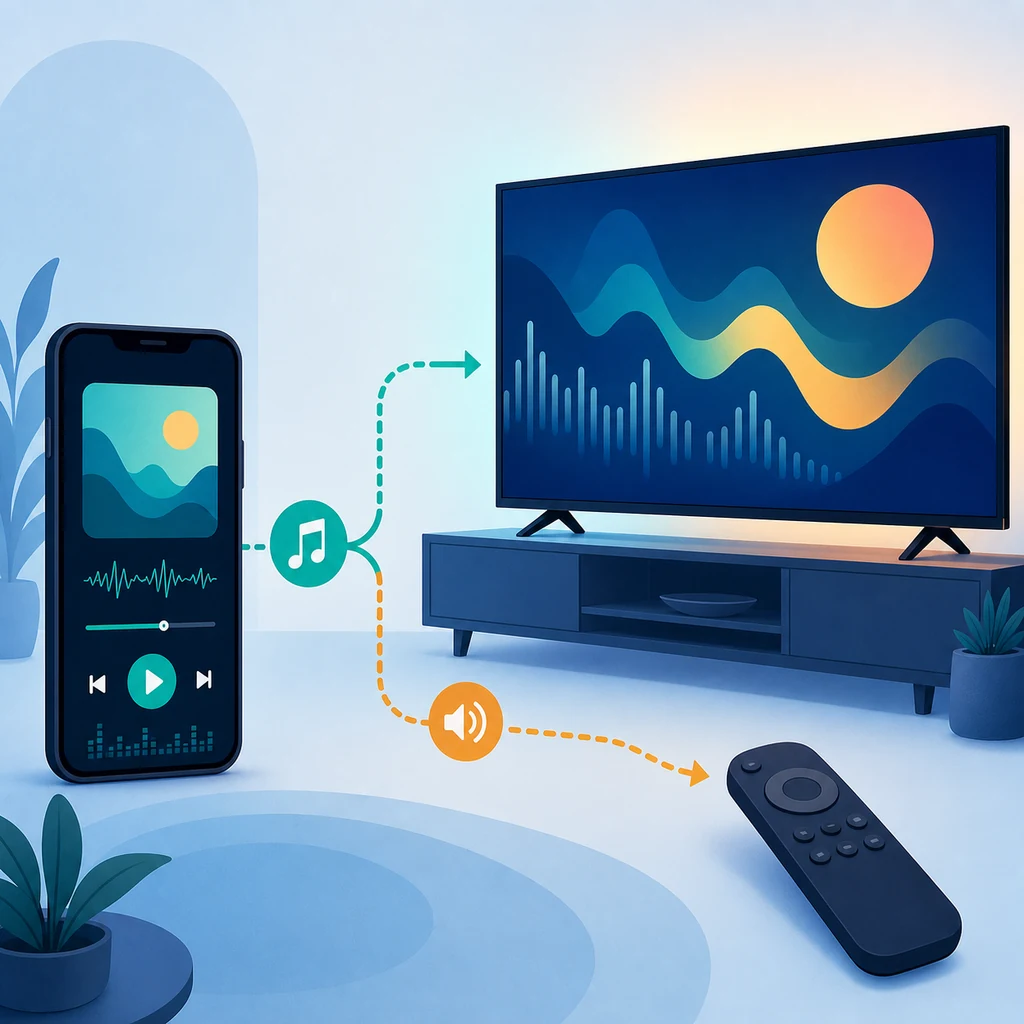
Metrolist Android TV: does it work?
The careful answer is “possibly, with limits.” Metrolist’s current public release is an Android application package, and the v13.6.3 release page lists Android APK assets rather than a separately named Android TV build. That means an Android TV or Google TV device may accept the standard APK, but the release itself does not guarantee a TV-optimized launcher, ten-foot layout or remote-first navigation.
Do not confuse three different paths: installing the APK directly on a TV box, casting phone playback to a television, and using a car or Bluetooth media connection. They use different controls and failure points. The official Metrolist repository is the right place to verify release names and source changes; a search result for “Android TV APK” is not evidence that a separate TV package exists.
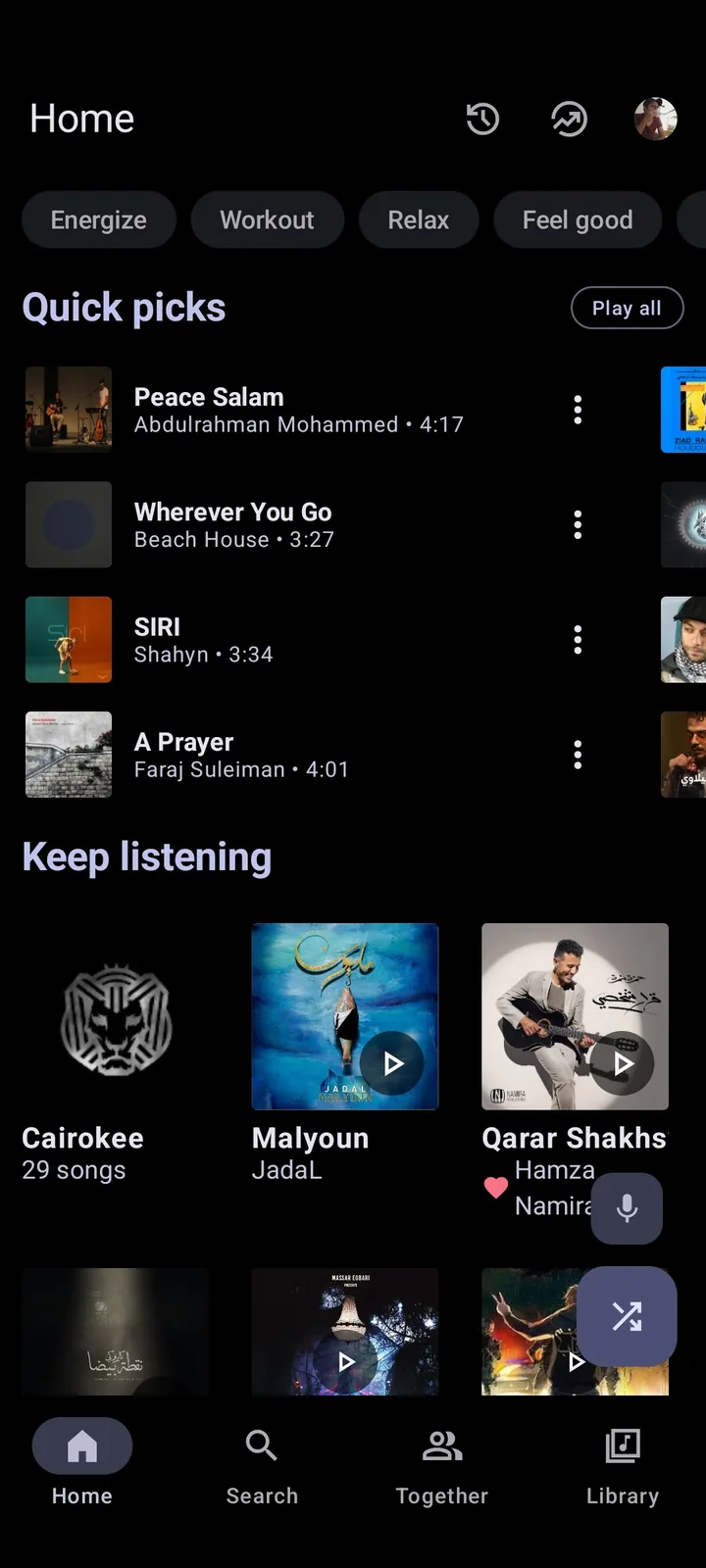
Choose the right Android TV or Google TV path
Start by deciding where the app should actually run. A Google TV device with Android app support is the closest match to a phone APK, while a television that only accepts approved store apps may reject sideloading. A Chromecast or another casting receiver can be simpler when you only need the phone to remain the player. Fire TV is a separate platform and should not be treated as confirmed Metrolist support just because the words “TV” and “APK” appear together.
Use the comparison below before changing settings or downloading a modified package. The goal is to choose a realistic playback path, not to force an Android phone interface into a living-room remote experience.
- Check the television or box model, Android version, CPU architecture and available storage.
- Confirm that the device can install Android APK files and that you can reach its file manager or ADB workflow.
- Use the standard release asset from the official release page; do not substitute a Mod APK or an unknown mirror.
- Test remote focus, back, select, pause, next-track and text-entry behavior while the device is still easy to reset.
- Keep phone casting as a fallback if browsing or sign-in is uncomfortable on the TV.
| Path | What it means | Best first check |
|---|---|---|
| Google TV / Android TV sideload | The APK runs on the TV device if the runtime accepts it. | Can the launcher, remote focus and sign-in flow work without touch? |
| Phone casting | The phone remains the player and the TV receives the output. | Test the same track, network and cast receiver with the phone unlocked. |
| Android TV box | A separate box may have more flexible file and ADB access than a TV panel. | Check Android version, architecture, storage and remote mapping. |
| Fire TV or closed TV platform | A different platform or store policy may block the Android APK. | Do not install an unofficial repack just to bypass a compatibility error. |
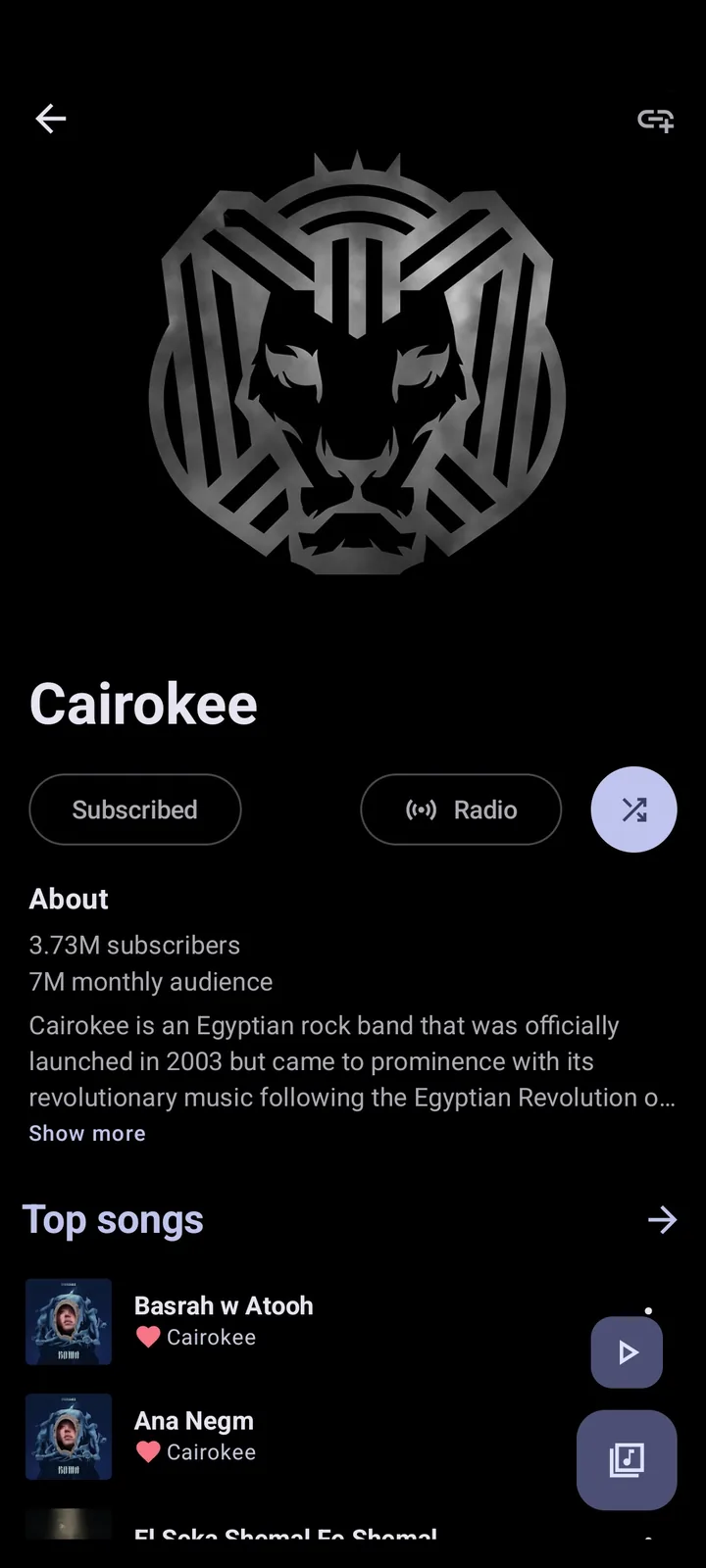
Install the APK on Android TV without assuming compatibility
If the device supports sideloading, begin with the verified release page rather than a search-result mirror. Download the standard `Metrolist.apk` asset on a computer or phone, transfer it through the device’s supported file or ADB method, and review the Android warning before installing. The release page is the new page’s download fallback because the local CDN probe could not independently confirm a stable direct file response; the version and file metadata were still checked against the official GitHub API.
An “app not installed” or “incompatible” message is useful evidence, not a reason to search for a cracked build. It can mean the Android version, CPU architecture, signing state, screen/runtime assumptions or TV policy do not match. Record the device model and error text, then compare with the general Android installation guide before clearing data or repeating the install.
- Verify the release tag is v13.6.3 and select the standard APK asset on the official page.
- Confirm the TV or box allows the specific file-transfer or ADB method you plan to use.
- Install while you still have a phone or computer available for troubleshooting; do not test while driving or in a public setup.
- Open the app, test anonymous browsing or a permitted playback path, and only then evaluate sign-in.
- If the icon is missing, check the launcher’s app list and the device’s input settings before reinstalling.
Remote controls, browsing and playback limits
A phone screenshot can look healthy while the TV experience is poor. TV launchers may hide sideloaded apps, touch-first screens may not expose a visible focus state, and text entry may be slow with a directional remote. Test one short playlist rather than assuming that every library, lyrics view or account screen will be usable from the sofa.
Keep the first session deliberately small: open the home feed, move between a few items, start and pause one track, return to the previous screen, and reconnect after the display sleeps. If audio plays but the screen is blank, compare TV output with phone playback and check the receiver path before changing the APK. For broad playback failures, use the Metrolist troubleshooting guide; for Android Auto, use its separate car-specific workflow.
- A missing launcher icon points to TV launcher visibility or sideload policy, not necessarily a broken APK.
- No focus ring or unreliable back behavior points to a touch-first layout or remote mapping problem.
- Audio on the phone but not the TV points to the cast, HDMI, Bluetooth or receiver path.
- A library that loads slowly on both devices should be tested with network, account and region checks.
- Do not paste account tokens into a TV browser, issue report, Reddit post or remote-support chat.
| Symptom | Likely boundary | First safe check |
|---|---|---|
| The app installs but is not in the TV launcher | Launcher visibility or sideload policy | Open the complete app list and confirm the package was installed. |
| The app opens but remote focus is hard to see | Phone-oriented layout or input mapping | Try a short playlist and a mouse/keyboard only as a diagnostic. |
| Phone audio works but TV audio does not | Cast, HDMI, Bluetooth or receiver route | Test another audio app and the same TV input. |
| Playback stalls on both phone and TV | Network, session, region or upstream service | Check the phone app and current release before reinstalling. |
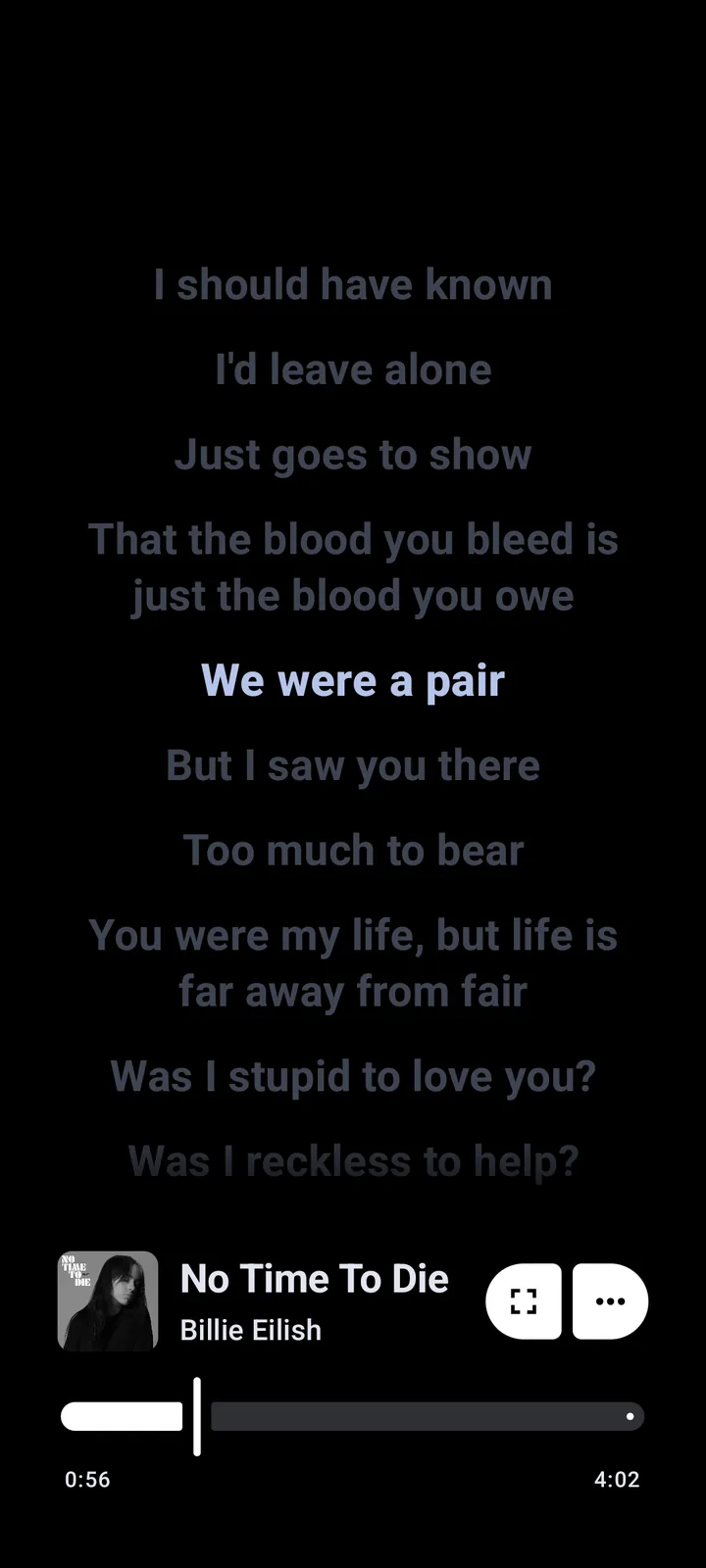
When casting is a better choice than sideloading
Casting can be the better answer when the television cannot provide a reliable launcher or remote-first interface. The phone keeps the app’s familiar touch controls and account flow, while the TV acts as the larger output. This does not turn the TV into a native Metrolist client, and it still depends on the receiver, network and the build’s supported output path.
Use casting when the goal is relaxed listening rather than TV-native browsing. Prepare the queue on the phone, keep the receiver on the same network when required, and test pause, resume and reconnect before leaving the phone unattended. If you need a native car screen, the Android Auto guide is the relevant page; Android TV and Android Auto are not interchangeable.
- Prefer casting when the TV blocks sideloading or the remote cannot navigate the app.
- Prefer direct TV installation only when the device accepts the APK and the remote flow is comfortable.
- Keep a phone-side queue ready because the TV may not expose every screen or provider.
- If a cast receiver is not visible, test network isolation and another supported app before blaming Metrolist.
Troubleshoot Android TV installation and playback
Use a non-destructive order. First confirm whether the problem exists only on the TV or also on the phone. Then record the release tag, device model, Android version, connection type and exact error. This makes an upstream issue report more useful and prevents repeated installs from hiding the original failure.
The current v13.6.3 release was published on August 7, 2026. It is the version checked for this guide, but a version match cannot guarantee Android TV compatibility. If a later release appears, re-check the official release notes and asset list before updating screenshots, instructions or download copy.
- Play the same short track on the phone without casting.
- Restart the TV or box and reopen the app from the full launcher list.
- Check network, date/time, battery or background limits and the selected audio output.
- Test one other media app to separate a TV/receiver problem from a Metrolist problem.
- Only after the evidence is recorded, consider reinstalling the verified standard APK.
What the release and download evidence actually prove
The official GitHub API and release page verify the v13.6.3 tag, publication date and named APK assets. They do not prove that every Android TV model supports the same package, that a TV launcher will expose it, or that a third-party “TV APK” is safe. Keep those claims separate. A verified phone APK is not a verified Android TV build.
For the safest update path, stay on the official release page, compare the tag and filename, and avoid repacks advertised as Premium, cracked or unlocked. If you need broader source context, read the Metrolist GitHub guide and the safety guide. Neither page promises perfect safety; both explain what can and cannot be checked.
- Verified: official v13.6.3 release tag and standard APK metadata.
- Not verified: a separate native Android TV package or universal remote-optimized layout.
- Avoid: modified APKs, random mirrors, token-sharing requests and unsupported Fire TV claims.
- Record: device model, Android version, architecture, release tag and exact error before asking for help.
Metrolist Android TV FAQ
Metrolist Android TV: does it have an official app?
The current verified release lists Android APK assets, but this page does not claim a separate native Android TV package. A compatible Android TV or Google TV device may accept the standard APK with device-specific limits.
Can I install Metrolist on Google TV?
Possibly. Check the Google TV device’s Android version, architecture, sideload policy, launcher behavior and remote navigation. Installation alone does not prove that every screen is TV-optimized.
Is there a Metrolist Firestick APK?
Do not assume so. Fire TV is a separate platform, and the Similarweb query returned no reliable Firestick keyword cluster or official package evidence. Avoid a modified APK that promises to bypass compatibility.
Will a TV remote control Metrolist?
It may control basic focus, back and playback actions if the device exposes usable input mapping. Phone-oriented screens, text entry and provider views can still be awkward, so test a short playlist before relying on it.
Is the Metrolist Android TV APK safe?
The standard v13.6.3 Android APK can be checked against the official GitHub release metadata. That does not make an unknown TV repack safe; use the official release page and keep tokens out of support messages or screenshots.
Is casting better than installing Metrolist on Android TV?
Casting is often more predictable when the TV blocks sideloading or the remote cannot navigate the app. The phone remains the player, so it is not the same as a native TV client.
Does Metrolist v13.6.3 guarantee Android TV compatibility?
No. v13.6.3 is the release checked for this guide, but compatibility still depends on the TV runtime, architecture, launcher, input method, network and upstream service.