
1. Verify the Metrolist APK before downloading
The safest Metrolist APK installation starts with the source, not the Android installer. On August 11, 2026, the latest release visible in the official MetrolistGroup repository is v13.6.3, published August 7, 2026. The repository lists the standard, Google Cast and Izzy APK variants. A page that calls a file premium, cracked or Mod is not describing an official release category.
Open the official v13.6.3 release and compare the asset name before installing. The standard Metrolist.apk is the normal choice for most Android phones. Choose the Cast build only when you need Google Cast support, and choose the Izzy build when its distribution rules and disabled in-app updater fit your workflow.
The site does not host a modified copy. Its Metrolist safety guide explains why a public repository, a release tag and a recognizable package are useful checks but not a universal safety certificate. If a mirror hides the version, changes the filename or asks for a password-protected archive, stop and return to the project release page.
| APK variant | Best fit | Installation decision |
|---|---|---|
| Metrolist.apk | Most phones and tablets | Recommended starting point |
| Metrolist-with-Google-Cast.apk | Devices that need Cast | Use only when Cast support is needed |
| Metrolist-izzy.apk | IzzyOnDroid-oriented workflow | Use when the updater-free build is intentional |
2. Prepare Android for an APK installation
Before you tap the file, check that the phone runs Android 8.0 or later and has enough free storage for the download and installation process. Keep the phone connected to a trusted network, charge it if the battery is low and avoid starting a first-run account or playback test while you are moving between networks.
Android normally blocks APK installation from a browser or file manager until you grant that specific app permission to install unknown apps. This permission is separate from Metrolist's normal music, storage or notification behavior. Android may show the setting only after you tap the downloaded file, and the exact menu wording varies by manufacturer.
Use Google's official Android installation guidance when the menu is different on your phone. Never enable a broad setting for every source when a per-app permission is available, and turn the permission off again if you do not plan to install more APK files.
- Confirm Android 8.0/API 26 or newer and enough free storage.
- Download only from the verified site or the official Metrolist release page.
- Remember which browser or file manager saved the APK; that is the app Android may ask you to authorize.
- Back up local settings or playlists before replacing an existing build with a different signing key.
3. Allow the browser or file manager to install the APK
Tap the downloaded APK from your browser's download list or from the Files app. If Android displays a blocked-install message, use the prompt to open the settings for that exact source. On many phones the path is Settings, Apps, Special app access, Install unknown apps, then the browser or file manager. Samsung, Xiaomi, Pixel and other Android builds can use different labels.
Allow the source temporarily, return to the installer and read the package prompt carefully. If the dialog names a package that does not look like Metrolist, or if the file is an archive rather than an APK, cancel. A normal update should also preserve the same signing identity; a signature mismatch is a stop signal, not a problem to bypass.
- Open the downloaded Metrolist APK.
- If blocked, open the source-app setting shown by Android.
- Enable Install unknown apps for that browser or file manager only.
- Return to the APK and confirm the package and update prompt.
- Disable the source permission again after the installation if you do not need it.
4. Install Metrolist and complete the first launch
Tap Install and wait for Android to finish verifying and unpacking the package. Do not press Install repeatedly if the screen pauses. A slow result can come from storage scanning, a large download, Play Protect review or a manufacturer security layer. If the installer reports that the app was not installed, record the exact wording before deleting the file.
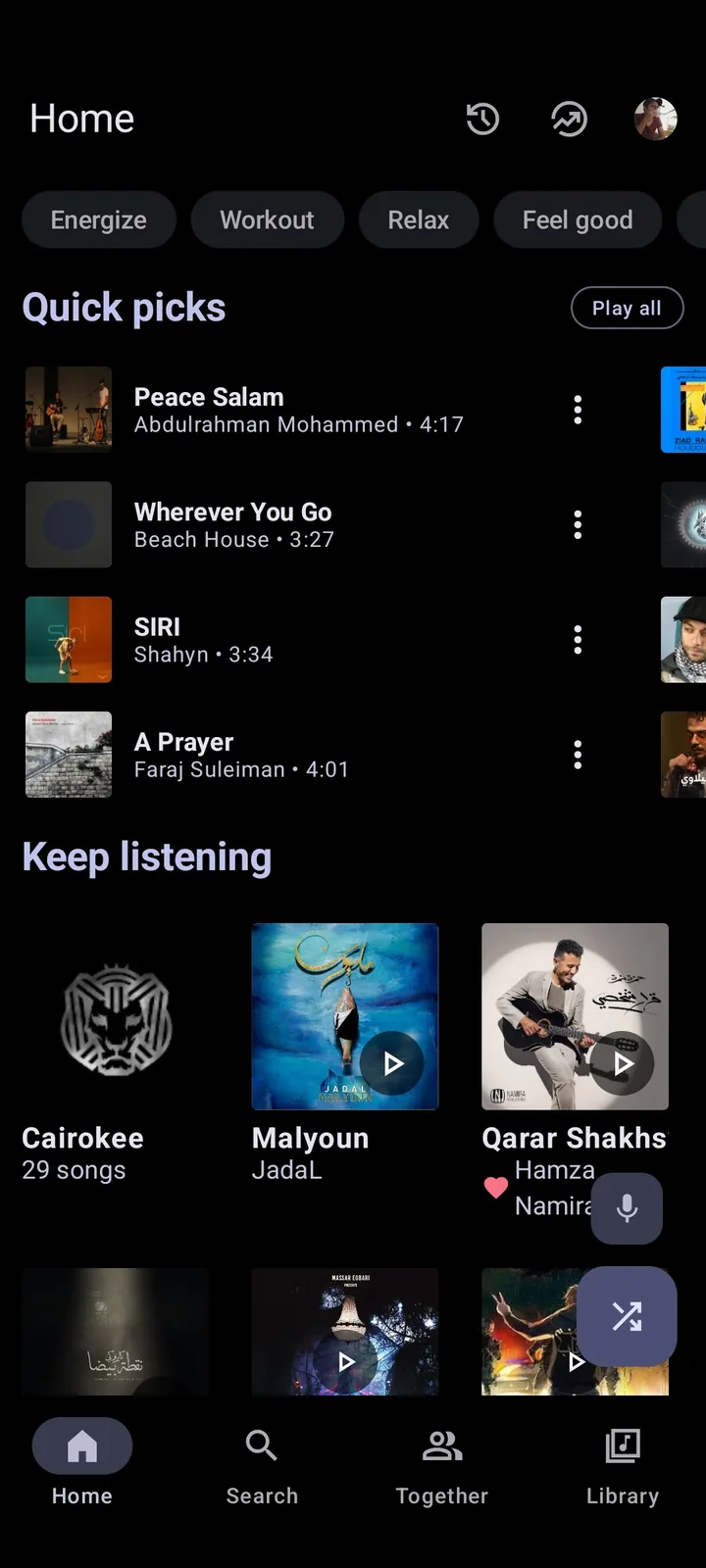
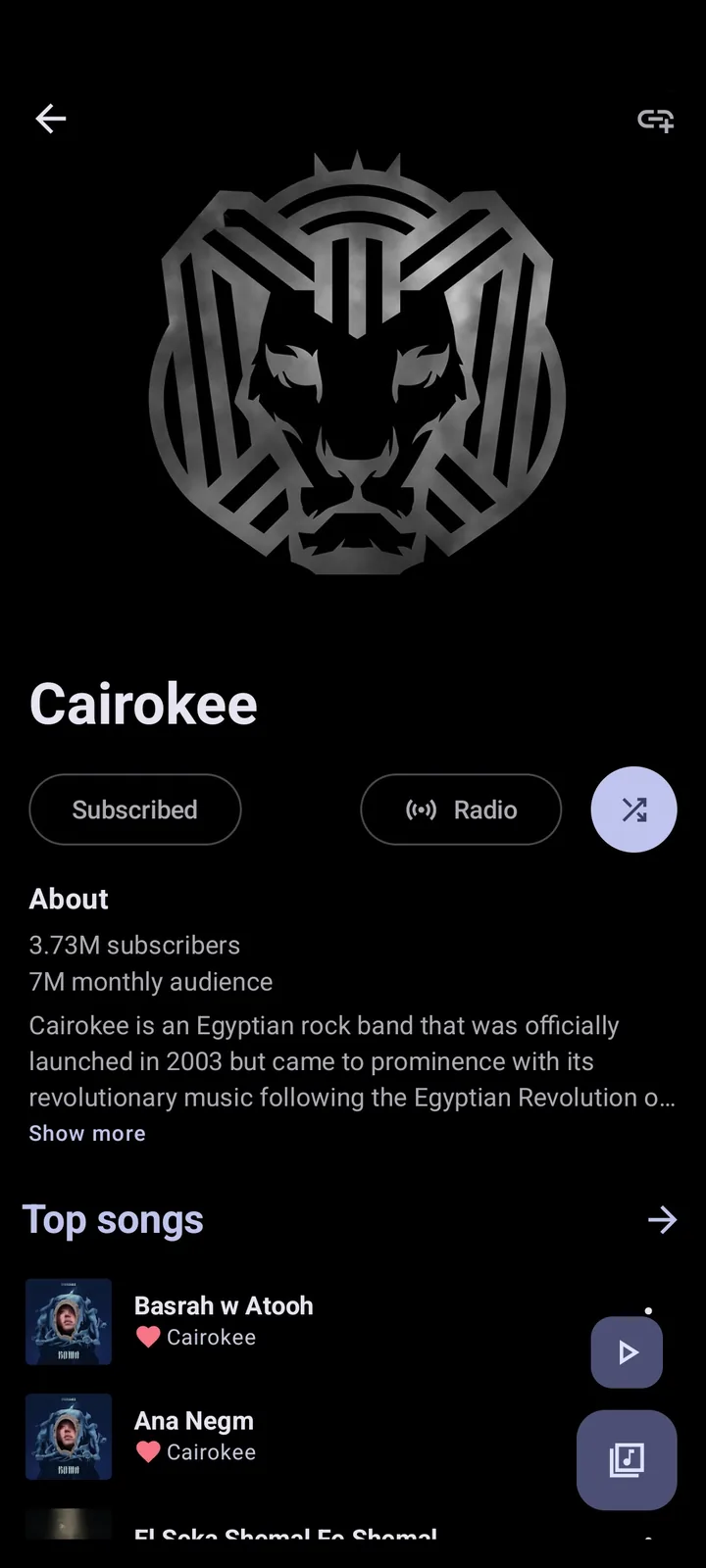
After the install completes, open Metrolist from the Android app drawer rather than immediately launching a second copy from the browser. Check the app name and icon, allow only the permissions you understand and let the home screen load before testing search or playback. The official project screenshot below shows the kind of in-app library view you should see after a successful launch; it is not a replacement for checking your own package source.
If an older Metrolist build is already installed, Android normally treats the new APK as an update only when the signing identity is compatible. Switching between unrelated mirrors or variants can trigger a conflict. In that case, back up what you need, verify the release source and decide whether a clean uninstall is acceptable before removing the old app.
5. Check playback, network and account behavior
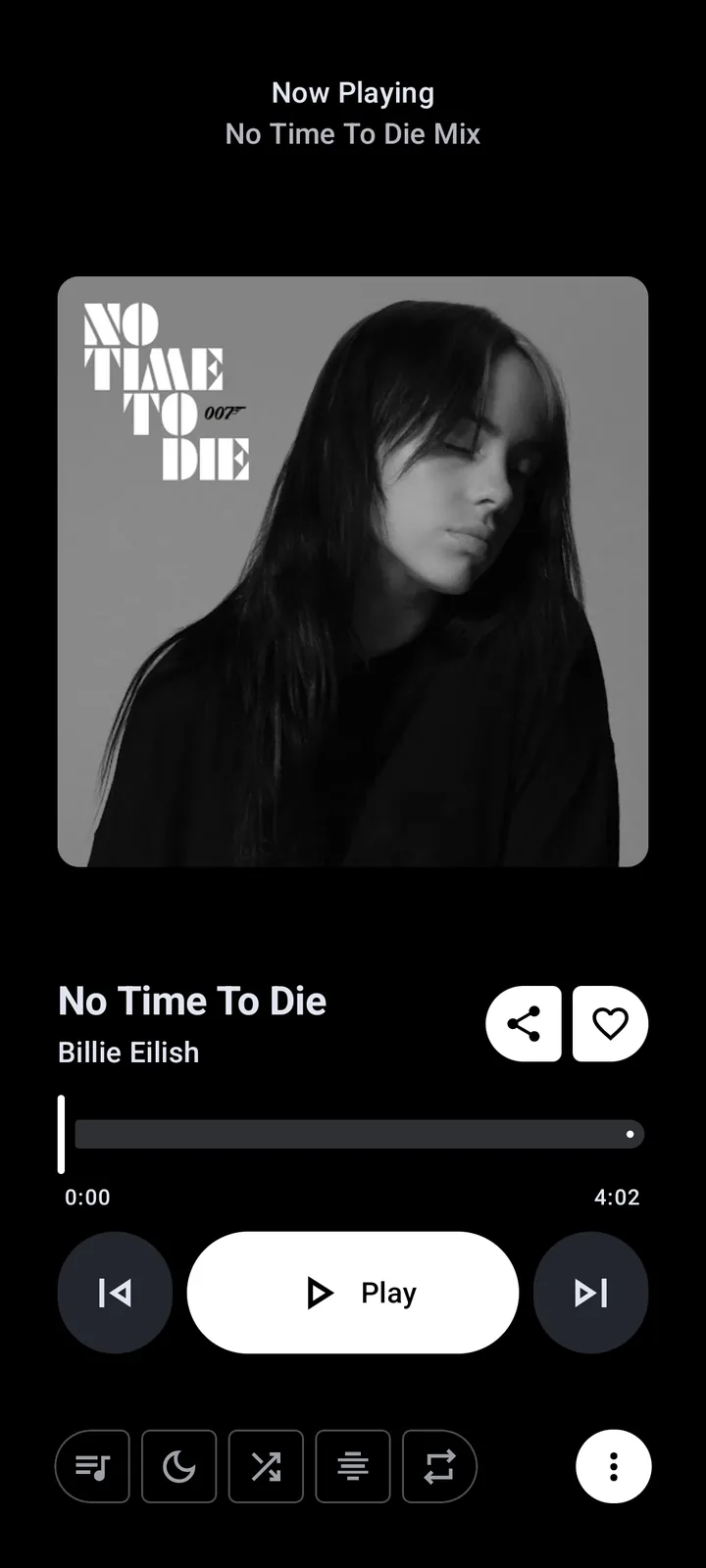
Use a short first-run test: open one public track, pause and resume it, move between the home and library areas and confirm that the audio output is going to the expected speaker or Bluetooth device. A successful install does not guarantee that every YouTube Music request works in every region or network. Separate an installation problem from an upstream playback or account problem.
If you choose to sign in, keep session information on the device and never paste cookies, tokens or private playlist URLs into a support request. Test anonymous or public playback first when possible. The Metrolist troubleshooting guide covers loading, playback, lyrics, account and regional failures that can happen after the APK itself has installed correctly.
Do not clear storage as the first response to a playback error. Clearing storage may remove local settings, cached content or playlists while leaving a network, region, WebView or upstream service issue untouched. Capture the app version, Android version and exact symptom before taking a destructive step.
- Test one short track on the phone speaker.
- Test pause, resume, seek and Bluetooth output separately.
- Confirm that the app version still shows v13.6.3 before reporting a bug.
- Keep account tokens and private media details out of screenshots and issue reports.
6. Update safely or fix a failed installation
For a normal update, stay with the same official release channel and compare the new tag, asset name and package before opening the file. Do not install a file merely because its filename contains a newer number. The official release page and Metrolist GitHub guide are the reference points for release assets, source changes and project status.
If Android says the app was not installed, check the Android version, free storage, file extension, download completeness and whether another Metrolist variant is already installed. A corrupted or partial download should be deleted and downloaded again from the official source. A signature conflict needs a source-and-backup decision; repeatedly trying random mirrors will not repair it.
If the app opens but playback fails, use the broader troubleshooting workflow instead of reinstalling immediately. If a new release causes a regression, record the version and reproduce the issue before considering an older official release. Older versions may lack security or compatibility fixes, and the site does not promise that an old APK remains safe or supported.
When the installation is complete, return to the source-app setting and revoke Install unknown apps for the browser or file manager if you do not need it. This small cleanup step reduces the chance of an unrelated APK being installed later through the same source.
| Installer message or symptom | Likely boundary | First useful action |
|---|---|---|
| App not installed | Wrong Android version, damaged file, storage or variant conflict | Check the exact message, file size and existing package before retrying. |
| Parse error | Incomplete download or unsupported package | Delete the file and obtain the matching official APK again. |
| Signature conflict | Different signer or unrelated mirror | Back up data and verify the release channel; do not bypass the warning. |
| Installed but no playback | Network, region, account, WebView or audio route | Test public playback and use the troubleshooting guide. |
| Update fails | Existing variant uses another signing identity | Confirm the variant and decide whether a clean replacement is safe. |
How to Install Metrolist on Android FAQ
Which Metrolist APK should I install?
Most users should start with the standard Metrolist.apk from the verified v13.6.3 release. Use the Google Cast or Izzy variant only when its specific feature or distribution workflow matches your device.
Why does Android block my Metrolist APK?
Android may require the browser or file manager that downloaded the file to be granted Install unknown apps permission. Open the prompt for that exact source, enable it temporarily, then return to the installer.
Is a Metrolist Mod APK needed for installation?
No. A Mod, Premium or cracked APK is not an official Metrolist release category. Use the project release assets and read the site's Mod APK safety guide instead of trusting a renamed package.
What does a signature conflict mean?
It usually means the APK was signed by a different key from the installed app. Stop, verify the source and back up what you need before considering a clean replacement. Do not bypass the warning with a random mirror.
Can I install Metrolist on any Android phone?
The verified release targets Android 8.0/API 26 or later, but playback and account behavior can still vary by device, region, network and upstream service. Installation compatibility is not a promise of universal playback.
What should I do if Metrolist installs but will not play music?
Test one public track, check the audio route and network, confirm the version, then use the Metrolist troubleshooting guide. Avoid clearing storage or reinstalling before you know whether the problem is the app package or playback environment.