
What the Metrolist sleep timer does
A Metrolist sleep timer is a stop instruction attached to playback. When the selected interval ends, the player pauses instead of continuing through the queue. The official playback documentation describes both a one-off manual timer opened from the player and an automatic sleep timer configured in Settings. That distinction matters: a manual timer is a quick session control, while an automatic timer is a preference that may apply again later.
The timer does not download a track, repair a stream or change the volume by itself. A song still has to start normally, and the selected output must respond to the same playback session. If you use a Cast build or another device effect, verify which device is producing sound before deciding that the timer failed. The goal of the first test is simple: start one known song, set a short interval, lock the screen and confirm that playback stops.
- Manual timer: a one-time duration for the current listening session.
- Automatic timer: a recurring schedule or preference configured in Settings when supported by the build.
- End condition: some versions expose an end-of-song or end-of-album choice in addition to a clock duration.
- Fade-out: a gradual volume reduction before the stop action; it is different from equalizer settings or normalization.
How to set a one-off sleep timer in Metrolist
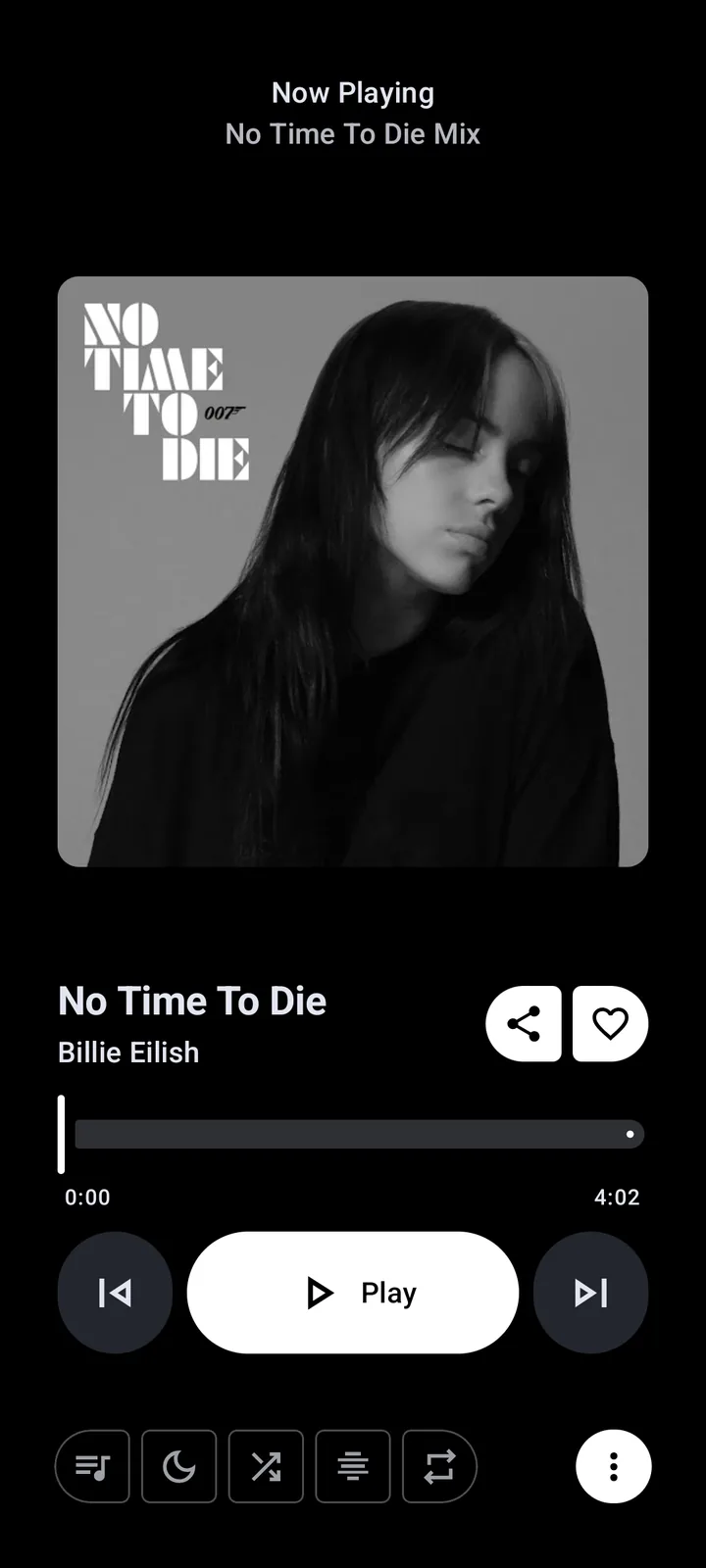
Use the manual path when you want one playlist, album or current track to stop tonight. Menu labels can move as the player UI is refactored, so look for the clock icon or the words Sleep timer in the expanded player rather than relying on a screenshot from a different release. The official guide places the control in the player, next to other playback actions.
Keep the first test short. A five- or ten-minute interval gives you a visible result and prevents a mistaken setting from running for hours. Do not queue a large offline library until the timer has passed a small controlled test. A countdown or selected duration is evidence that the setting was accepted; it is not proof that the final pause will be delivered to every output device.
- Play a familiar song and confirm that audio starts normally.
- Tap the mini-player bar to open the full player and inspect its playback actions.
- Choose the clock or Sleep timer control exposed by your installed build.
- Select a short duration, or an end-of-track option if your build offers it, and confirm the selection.
- Return to the player and check that the remaining time or active state is visible.
- Lock the screen, wait for the interval and verify that the same song and queue have paused.
| Test | Expected evidence | If it fails |
|---|---|---|
| Control opens | A duration or end condition can be selected | Update the release and reopen the full player |
| Countdown active | The player shows an active timer or remaining time | Cancel and set one short interval again |
| Stop delivered | Playback pauses after the interval | Check output device, battery limits and Cast state |
| Queue preserved | The queue remains available after the pause | Separate timer behavior from a queue or source error |
Automatic schedules, end-of-track options and fade-out
An automatic Metrolist sleep timer is useful when your listening routine is predictable. The official playback guide describes a recurring schedule under Settings, while the player also offers a manual one-off control. Treat these as separate states: changing a manual countdown should not be assumed to rewrite the recurring preference, and disabling a schedule should not be confused with pausing the current queue.
Some builds also expose a choice to stop at the end of a song or album. That condition is different from a fixed number of minutes because the final duration depends on the current track and queue. Read the selected label before pressing confirm. If you need a guaranteed short test, use a clock duration instead of an end-of-album rule.
Fade-out changes how the stop sounds, not whether the timer exists. A fade can make the last seconds less abrupt, but a fixed fade duration may be version-specific. GitHub issue reports discuss configurable fade behavior, so describe the setting you actually see and avoid promising a particular number of seconds for every release. If vocals become quieter immediately, check the equalizer page separately; do not use an EQ preset as a timer test.
- Use a recurring schedule for a repeated bedtime routine, then verify its enabled state in Settings.
- Use an end-of-song or end-of-album rule only when the queue boundary is intentional.
- Use a fixed duration for reproducible troubleshooting and screenshots.
- Treat fade-out as an optional presentation setting and confirm the timer still pauses playback afterward.
Test the timer with the lock screen, queue and background playback
Metrolist runs as a foreground media service, so the official playback guide says audio can continue when the screen is off, another app is open or the device is locked. That makes a lock-screen test important. A timer that works only while the app is visible has not completed the same workflow as a bedtime session.
Test one boundary at a time. Start with a short song and a two-item queue. Lock the phone, wait past the selected interval and open the notification or player again. Then repeat with a longer queue. If a Cast device is involved, check the remote device as well as the phone; a local pause and remote playback are separate observations.
- Create a small queue with two familiar tracks and keep the phone connected to a stable network.
- Set a short manual timer and note the selected duration.
- Turn the screen off and wait without opening the app again.
- Check the lock-screen controls or notification after the expected stop time.
- If the queue is still playing, check whether the timer was cancelled, the duration was changed or another device is active.
- Repeat once with Cast disabled so the result identifies the local player boundary.
Why the Metrolist sleep timer is not working
When playback does not stop, start with the narrowest explanation. A missing timer control is different from a countdown that disappears, and a local pause is different from sound continuing on a Cast receiver. Recording the exact state prevents a general reinstall from hiding the cause. The troubleshooting order below is designed to preserve playlists and offline data while you test.
First confirm that a song is actually playing and that the timer belongs to the active player. Open the expanded player again, cancel any old timer and set one short interval. If the timer control is missing, compare the installed release and build variant with the official repository. If the countdown is visible but playback continues, inspect battery restrictions, background execution and the selected output. If only one track behaves differently, treat it as a source or queue issue rather than a timer-wide failure.
- Timer control missing: update from a verified release and inspect the expanded player, because menu placement can change.
- Timer never starts: select a duration, confirm it and watch for an active state before locking the screen.
- Playback continues after countdown: check Android battery restrictions, notification media controls and another active Cast device.
- Only one queue keeps playing: test a different public song and a two-item queue to separate content from the timer.
- Timer stops audio but the notification lingers: reopen the player and check whether the notification is stale rather than audible playback.
- Issue returns after reinstall: preserve the version, variant, Android release and exact steps before clearing app data.
| Observed symptom | Most useful next check | Avoid first |
|---|---|---|
| No timer icon | Check release notes and expand the full player | Installing an unknown Mod APK |
| Countdown vanishes | Set one short timer while playback is active | Clearing storage immediately |
| Remote audio continues | Disable Cast and repeat locally | Blaming the local timer without checking the receiver |
| One song ignores stop | Compare a known public track | Repeating the same failed source |
| Stops too abruptly | Review fade-out settings | Changing EQ bands as a workaround |
Reset the timer safely and keep the change reversible
A timer setting should be easy to undo. Cancel the active countdown from the same player control, disable an automatic schedule in Settings and return fade-out to its default before testing again. If the menu is unclear, restart playback with a short duration rather than deleting the app. The existing Metrolist offline-download guide explains why clearing storage can remove local media and database records; it is a poor first response to a timer symptom.
For a reproducible report, write down the Metrolist version, standard/Cast/Izzy variant, Android version, timer mode, selected duration, screen state and output device. Include whether the queue paused, whether a remote device continued and whether the failure affects every song. Do not share account tokens, private playlist links or copied lyrics. Use the official GitHub project for release context and issue reporting, then link to the broader troubleshooting guide when the symptom includes loading or playback failure.
- Cancel the manual timer and confirm that the active indicator disappears.
- Turn off an automatic schedule when you want a one-time test only.
- Restore a neutral fade-out value before comparing another duration.
- Keep playlist links and offline data intact until the timer boundary is understood.
- Report a small, repeatable case without credentials or private media.
Metrolist sleep timer FAQ
Does Metrolist have a sleep timer?
Yes. The official playback documentation describes a manual sleep timer in the player and an automatic sleep timer under Settings. Menu placement and available options can vary by build.
How do I set the sleep timer in Metrolist?
Start playback, open the full player, tap the clock or Sleep timer control shown by your build, choose a duration and confirm it. Test a short interval with the screen locked before using it overnight.
Can Metrolist stop at the end of a song or album?
Some versions expose an end-of-track or end-of-album condition alongside fixed durations. Read the option shown in your build and verify it with a small queue because the final time depends on the current playback state.
Why does the Metrolist sleep timer not pause playback?
Check that the timer is active, the song is playing in the expanded player, Android is not restricting background execution and another Cast device is not still playing. Repeat with a short local queue.
Does the Metrolist timer work when the screen is locked?
It is intended to work with background playback, but verify your device by setting a short timer, turning the screen off and checking the player or notification after the expected stop time.
Does fade-out change the Metrolist sleep timer duration?
Fade-out changes the transition before stopping; it does not replace the timer duration. Exact fade controls are version-specific, so describe the value visible in your build instead of assuming a fixed number.
Will clearing Metrolist data fix a timer problem?
It should be a last resort. Clearing storage can remove offline data, settings and database records. Check the release, timer state, battery limits and output device first, and preserve playlist links before any reset.
Where can I report a Metrolist sleep timer bug?
Use the official MetrolistGroup/Metrolist GitHub issue workflow after reproducing the problem on a verified release. Include version, variant, Android version, timer mode and exact steps, but never post tokens or private playlist links.