
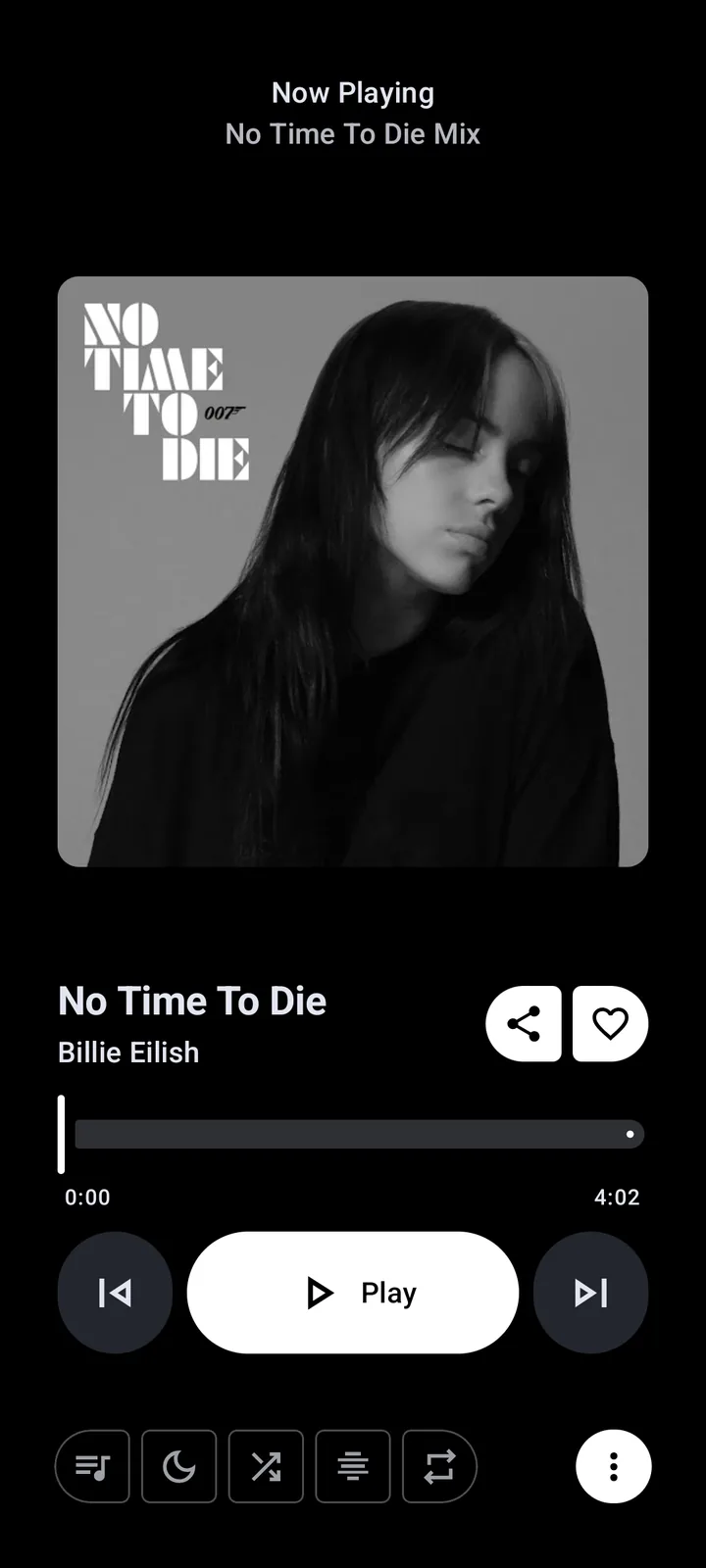
What Metrolist offline downloads actually do
The official project documentation describes two related paths. A deliberate download uses the app's DownloadManager and appears in Library > Downloads after the file is complete. A player cache stores recently played media so it can start again without fetching the stream immediately. Both are managed by Metrolist; neither should be treated as a permanent, unrestricted music archive.
- Download: an intentional save action with a visible completion state.
- Cache: temporary or automatic local playback data managed by the player.
- Offline mode: automatic reuse of an available local copy; there is no universal switch that makes every song offline.
- Online-only work: search, fresh metadata, account synchronization and tracks that were never saved.
How to download a song or playlist in Metrolist
Start with a short test playlist rather than a large library. A small set makes it easier to see whether the app is downloading, caching, skipping unavailable items or stopping in the background. Use a stable Wi-Fi or mobile connection, keep the screen awake for the first test and do not change several network settings at once.
- Connect to a reliable network and open a public song that plays normally.
- Open the song or playlist menu and choose the download action shown by your build.
- Keep Metrolist open until the progress indicator reports completion; a spinner alone is not proof that a file is ready.
- Open Library > Downloads and confirm that the song or playlist entry is present.
- Play two saved tracks while still online, then repeat after enabling Airplane Mode.
- Only after the small test passes should you add a larger playlist or enable automatic downloads.
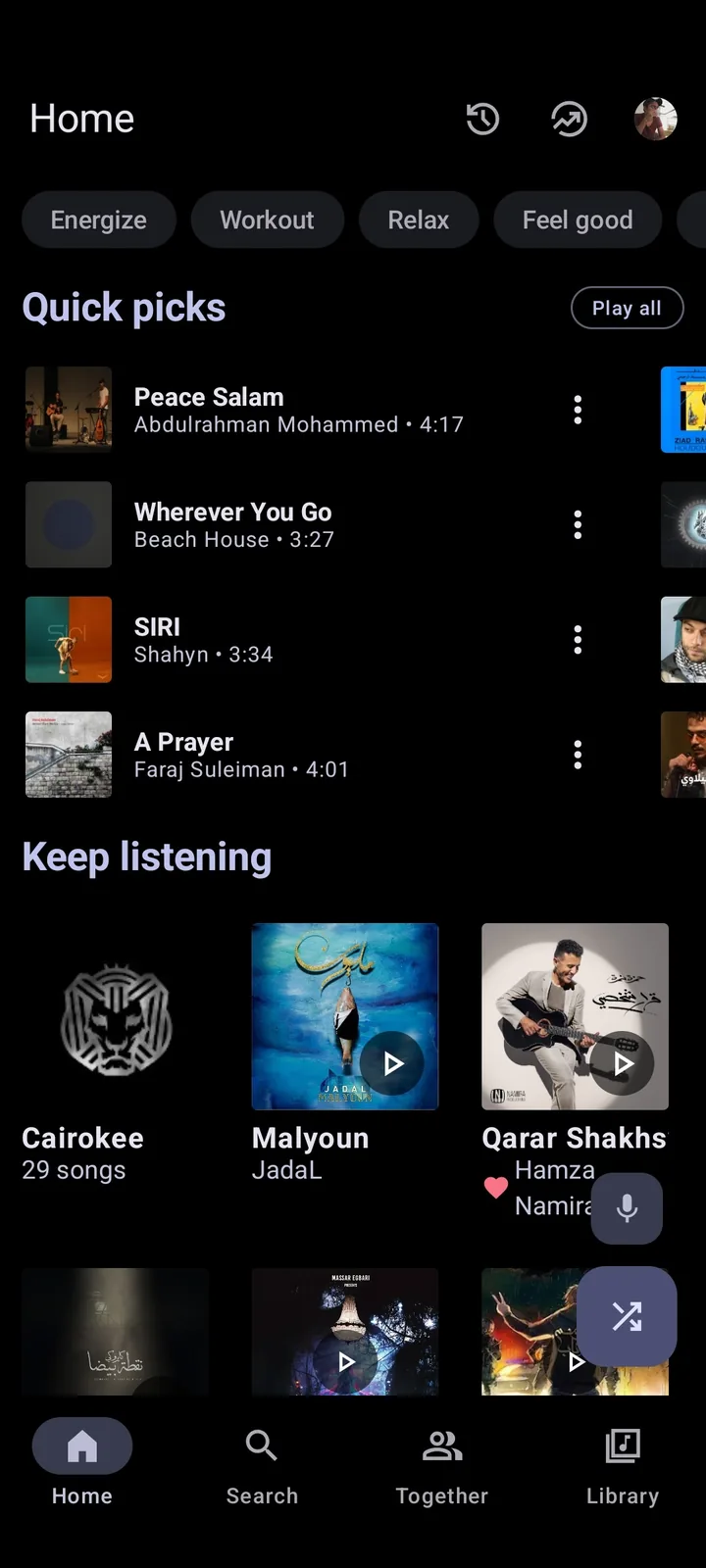
Where Metrolist saves songs: Library > Downloads
Completed downloads are collected in Library > Downloads, which the project documentation describes as a persistent playlist. From there you can play, shuffle or add saved songs to the queue without asking the network for the original stream. Seeing an entry in this list is useful evidence; a file that only appeared in a recent queue is not the same thing.
If a track is missing, check whether the task finished, whether the source was available, and whether Android stopped the app while it was working. Avoid moving or renaming internal files with a file manager. Metrolist keeps its own records of downloaded and cached media, so manual changes can leave a library entry that no longer resolves.
- A completed item should remain visible after closing and reopening the app.
- A playlist can contain a mixture of completed, pending and unavailable tracks.
- Lyrics, cover art, fresh metadata and account changes may still be incomplete offline.
- Clearing app storage or using an aggressive cleaner can remove the records and the media together.
Choose download quality and manage storage
The official offline guide says downloads follow the app's Audio quality setting. Auto chooses an available format, High favors a larger higher-bitrate file, and Low reduces storage use. Start with Auto or Low when testing a device with limited free space; quality changes do not repair a failed network request or an unavailable track.
Open Settings > Storage to see how much space Metrolist uses, and check Android's own free-space view as well. Leave headroom for the operating system, artwork and future downloads. If downloads stop only when the screen turns off, the likely boundary is battery or background execution rather than the selected bitrate.
Test offline playback before you leave the network
Do not wait until a flight or a dead zone to discover that only one track was cached. While online, play several entries from Library > Downloads, close and reopen Metrolist, then enable Airplane Mode. Start a song near the middle of the playlist and skip to another saved item. This checks local availability better than replaying the first track from memory.
- Open Library > Downloads while online and choose three different saved songs.
- Play the first song, then restart Metrolist so the test is not using a warm screen state.
- Turn on Airplane Mode and open the same Downloads list again.
- Play the second and third songs, seek briefly and confirm the queue does not need a network response.
- Turn connectivity back on and note which item, if any, failed so the next diagnosis stays specific.
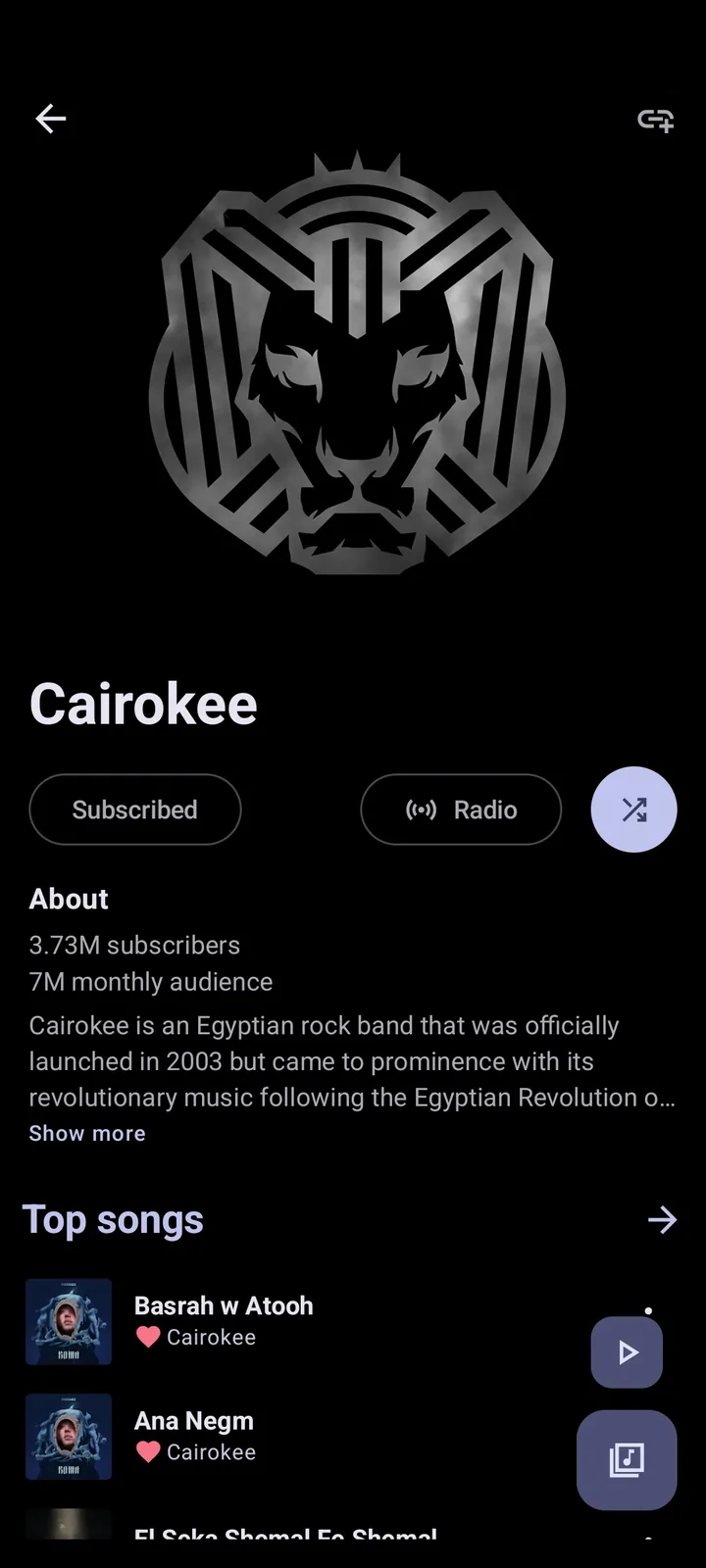
Why Metrolist downloads fail or keep loading
A failed download can come from an old extractor, regional availability, a filtered network, low storage, a paused background task or one unavailable track. First test another public song. If one item fails while others complete, treat it as content-specific. If every item stays pending, check the release, network and Android background limits before deleting anything.
- Update to verified v13.7.0 and test without a VPN, private DNS or filtering layer when regional access is not the issue.
- Check free storage and Settings > Storage before queuing a large playlist.
- Keep the app open during one small download to rule out battery restrictions.
- Retry one known public track instead of restarting the whole playlist repeatedly.
- If only lyrics or artwork fail, keep the downloaded audio and troubleshoot that separate data path.
- Record the exact error, APK variant, Android version and whether the failure is global or limited to one item.

Protect offline data and respect usage limits
Offline saves are app-managed playback data, not a promise of permanent file ownership. A reinstall, a signature change between APK variants, Android cleanup or a damaged local database can remove them. Back up playlists or keep their original links before changing variants. Do not publish account tokens, private playlist URLs or copied lyric text when asking for help.
- Keep the original playlist or album link before starting a large offline job.
- Avoid cleaners that delete app-managed media or databases without showing the path.
- Do not switch between standard, Cast and Izzy builds without checking signing and backup implications.
- Use official GitHub assets rather than a renamed premium, cracked or Mod package.
- Treat regional access, copyright and service rules as separate from whether the app can technically cache a song.
A reliable recovery order for offline playback
When offline playback breaks, repair the smallest boundary first. Confirm the app version and free space, test one public track online, retry one download, check Library > Downloads, then repeat the Airplane Mode test. Only after those checks should you review battery settings, account synchronization or a variant change. Clearing storage is a last resort because it destroys evidence and may remove the very data you are trying to recover.
- Verify v13.7.0, the APK variant and available storage.
- Play one known public song online and download it again.
- Confirm the item appears in Library > Downloads.
- Repeat the Airplane Mode test with more than one saved song.
- Back up links and report the narrow symptom before considering a reset.
Metrolist offline downloads FAQ
How do I download songs on Metrolist?
While online, open a song or playlist, choose the download action shown by your build, wait for completion and confirm the item in Library > Downloads. Test several saved songs with Airplane Mode before relying on them.
Where does Metrolist save downloaded songs?
Completed items appear in Library > Downloads. Metrolist manages the underlying files and database, so moving or deleting them with a file manager can break the library entry.
What is the difference between cache and download in Metrolist?
A download is an intentional save with a completion state. Cache is player-managed local data from recent playback. Both can support offline reuse, but a cached song is not proof that an entire playlist is ready.
Why can't I download songs on Metrolist?
Check the verified version, network, free storage, background battery limits and the specific track. Try one known public song and keep the app open during the test before clearing data.
Can Metrolist play music in Airplane Mode?
Yes, for songs that were fully downloaded or remain in the local cache. Test multiple items after restarting the app with connectivity disabled; search and new recommendations still require a network.
Will clearing Metrolist storage delete offline downloads?
It can remove local downloads, cache and database records. Back up playlist links and try version, storage, network and battery checks before a destructive reset.
Which Metrolist version should I use for offline downloads?
The official release checked on October 23, 2026 is v13.7.0, published September 7, 2026. Use the project release assets and recheck the release page when a newer tag appears.
Can I move Metrolist downloads to another music app?
Do not assume that app-managed cache or download files are portable. Metrolist tracks them in its own storage and database, so use a supported playlist or official export path rather than copying internal files.