
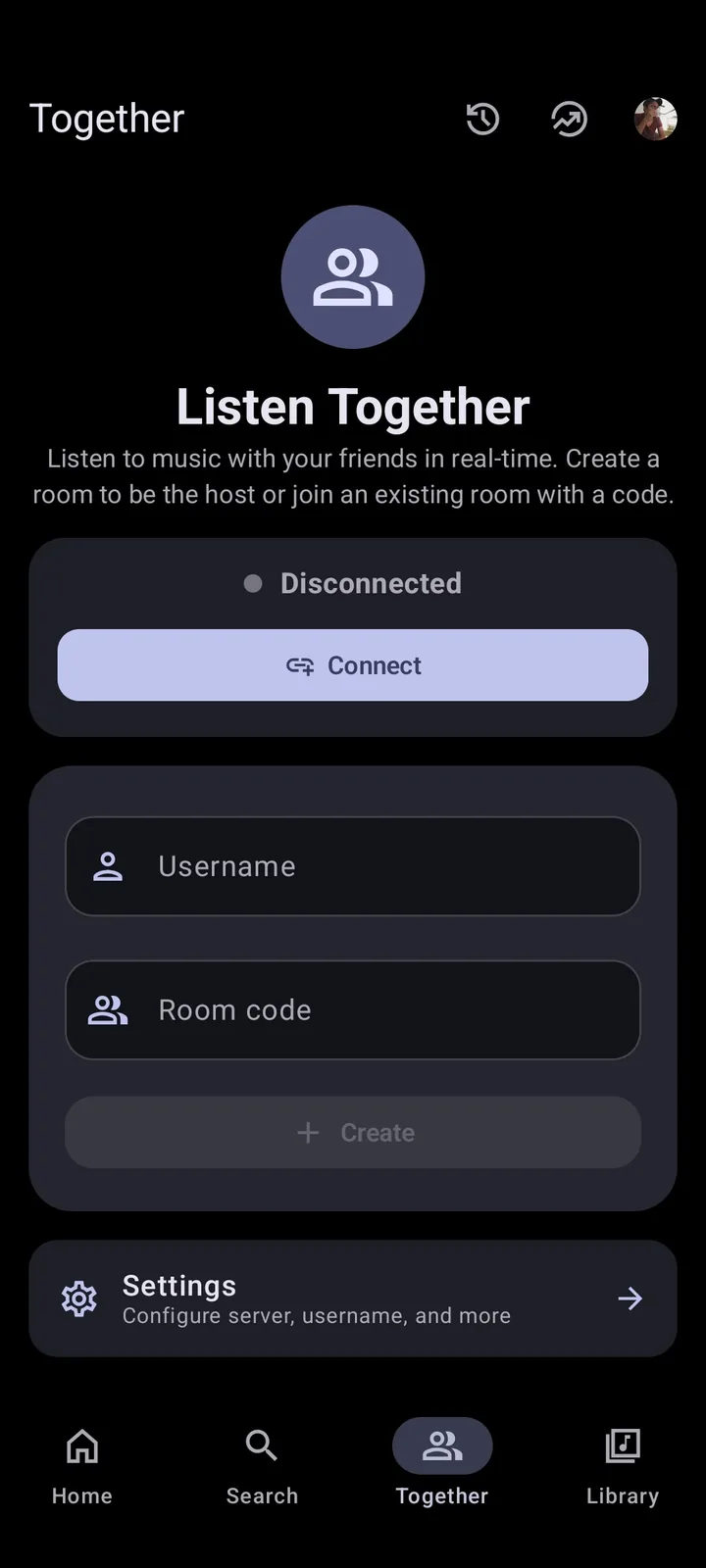
Can Metrolist import Spotify playlists directly?
The Metrolist README lists playlist import as a feature, and the source contains local and YouTube playlist import flows. That is not the same as a first-party Spotify API connection. We did not find an official promise that entering a Spotify playlist URL will directly reproduce the playlist inside Metrolist.
Metrolist is built around YouTube Music data. For that reason, YouTube Music is the practical bridge: transfer Spotify tracks to a YouTube Music playlist, verify the matches, then access the playlist through Metrolist's YouTube Music account synchronization or supported playlist import action. This extra step is more honest than promising a one-click direct import that may disappear between versions.
| Method | Expected reliability | Main trade-off |
|---|---|---|
| Paste Spotify link directly into Metrolist | Not verified as an official direct workflow | May not be recognized or may change by release. |
| Spotify to YouTube Music transfer, then sync | Most practical | Requires a transfer service or manual matching. |
| Manual recreation | Slow but controlled | Best for small or sensitive playlists. |
| CSV/M3U workflow | Format-dependent | Track identifiers may not map cleanly across services. |
Prepare the Spotify playlist before transfer
Make the source stable before copying it. Rename the playlist clearly, note the track count and remove unavailable duplicates if they do not matter. For an important playlist, export a plain list of track title, artist and album or take screenshots of the beginning, middle and end. A transfer service can make wrong matches, and the original playlist is the easiest audit reference.
Decide whether the playlist can temporarily be public. Some transfer tools work with public playlist URLs and do not need full Spotify account authorization. A private playlist may require OAuth access. Prefer limited, revocable authorization over entering a password directly into a third-party form.
- Record the original playlist name and track count.
- Keep the Spotify playlist unchanged until verification is complete.
- Remove local-only Spotify files that cannot exist on YouTube Music.
- Check whether explicit, live, remix and remastered versions need exact matching.
- Use a unique destination name such as “Playlist Name - Metrolist transfer.”
Transfer Spotify to YouTube Music, then Metrolist
Choose a reputable playlist-transfer service with a clear privacy policy and direct OAuth authorization to Spotify and Google. The transfer service sees playlist metadata and may receive temporary account permissions. Review the requested scope and revoke access after the transfer if you do not plan to reuse it.
Select Spotify as the source and YouTube Music as the destination. Transfer one playlist first, not the entire library. When the service finishes, open YouTube Music itself and inspect the destination. Correct mismatched tracks before opening Metrolist; otherwise the same mistakes will synchronize into the client.
- Back up the Spotify playlist and record its track count.
- Authorize a reputable transfer service through the official Spotify and Google sign-in pages.
- Choose only the target playlist and send it to YouTube Music.
- Review unmatched and low-confidence songs in the transfer report.
- Open YouTube Music and correct covers, remixes, live versions or missing tracks.
- Install the verified Metrolist APK and sign in to the same YouTube Music account.
- Refresh the library or playlists screen and confirm the destination count.
- Revoke transfer-service account access when the job is complete.
How to verify transferred tracks
No cross-service matcher is perfect because Spotify and YouTube Music use different catalog identifiers. One service may list a studio recording while the other prioritizes a music video, remaster, clean edit, live performance or user upload. Compare more than the final track count.
Sample at least ten tracks from a large playlist: early, middle and late positions, common releases and obscure songs. Check artist, duration, album and explicit status. If the destination has fewer songs, use the transfer report to search manually. If it has the same number but sounds wrong, matching quality rather than quantity is the problem.
- Wrong artist with the same song title.
- Live version instead of studio recording.
- Music video audio instead of album version.
- Clean edit replacing an explicit version.
- Remaster or remix with a different duration.
- Unavailable regional release or local Spotify file.
Account and privacy precautions
A transfer service should send you to official Spotify and Google authorization pages. Do not enter a raw Google cookie, YouTube token or password into an unknown site. Review connected apps after the transfer and remove access you no longer need. Keep screenshots and support tickets free of account identifiers.
Metrolist login should occur inside the verified Android app. If a Reddit post, unofficial desktop wrapper or chat user asks you to paste a token to “fix sync,” stop. Read Is Metrolist Safe? for source and token checks.
Fix missing or unsynchronized playlists
If the playlist exists in YouTube Music but not Metrolist, confirm the app uses the same Google account, update Metrolist, refresh the library and restart the app. Test another small YouTube Music playlist to determine whether synchronization is generally broken or only one destination is affected.
Do not repeat the transfer several times without changing the destination name; duplicate playlists make later verification harder. If Metrolist itself fails to load libraries, use the troubleshooting guide before clearing app storage.
Audit an import Spotify playlist to Metrolist workflow
Treat every import as a migration with a source, a match report and a destination. To import Spotify playlist to Metrolist reliably, preserve the source count, transfer once, review YouTube Music and then check the same account in Metrolist. This makes the import auditable: you can identify whether a missing track failed during catalog matching, YouTube Music creation or Metrolist synchronization. It also prevents duplicate destination playlists caused by repeatedly pressing import without checking the earlier result.
For recurring playlists, document the import date and whether order matters. An import Spotify playlist to Metrolist workflow copies a snapshot; it does not necessarily create permanent two-way synchronization. New Spotify additions may require another transfer or manual entry. Use a new destination name for a later import, compare the two lists, then delete the duplicate only after verification. This keeps import mistakes reversible and makes future playlist maintenance clearer.
After you import Spotify playlist to Metrolist, keep the original until several listening sessions confirm the result. Test shuffled playback as well as the displayed list because duplicates and wrong versions can be missed during a quick scan. Record manual corrections separately; a later import can overwrite or duplicate those decisions if the transfer tool does not retain match history.
Keep an import record
Create an import record with the Spotify playlist URL, original count, destination name, transfer date and unmatched count. During import, note any manual substitutions. After import, retain the report until the Metrolist playlist passes playback checks. This record makes a second import easier to compare and prevents guessed corrections.
Import only one test playlist before authorizing a whole library. A small import reveals how the tool handles local files, duplicates and regional catalog gaps. If the import quality is poor, revoke access and choose manual matching rather than repeating a larger import. If it succeeds, import the next playlist with a distinct destination name and verify it independently.
Spotify to Metrolist FAQ
Can Metrolist connect directly to Spotify?
A direct Spotify account importer is not clearly documented by the current project. Use YouTube Music as the verified bridge.
Will every Spotify song transfer?
No. Catalog differences, regional availability, local files and version matching can create missing or incorrect tracks.
Do I need Spotify Premium?
Playlist metadata transfer does not always require Premium, but requirements depend on the transfer service and Spotify account permissions.
Why is the transferred playlist missing in Metrolist?
Confirm it exists in YouTube Music, uses the same account, and that Metrolist is current. Then refresh or sign in again after backing up local data.
Can I use a CSV file?
Some services accept CSV, but title and artist fields still need to be matched to YouTube Music catalog entries.
Should I delete the Spotify playlist afterward?
Keep it until you have checked track count, versions, order and playback in the destination.