
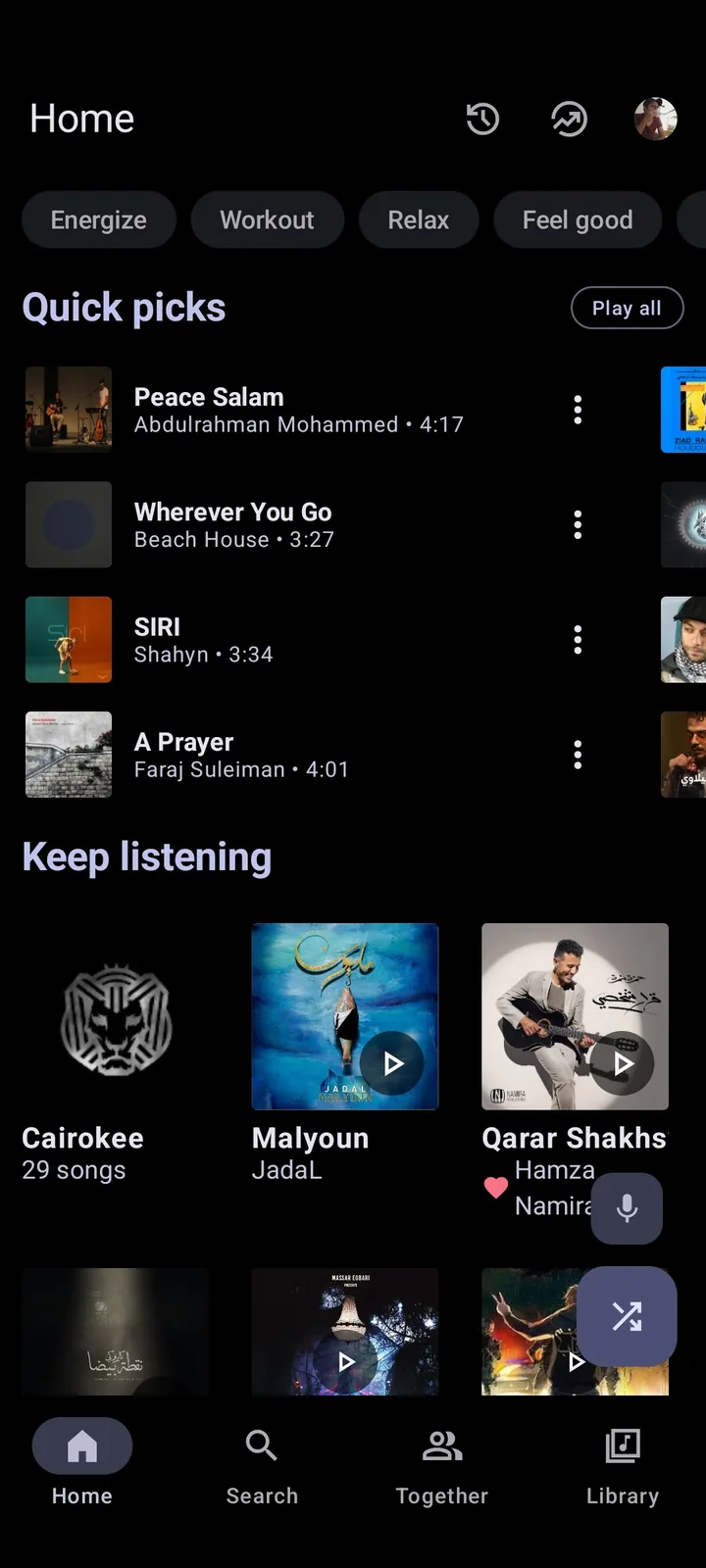
Check Chromebook compatibility first
Open ChromeOS Settings and confirm that Apps includes Google Play preferences. If that control is missing, the Chromebook does not provide the Android environment Metrolist needs. Managed school and work devices may also block Android apps, Linux or ADB, and those restrictions should not be bypassed. Google Chromebook Android app support.
Metrolist v13.6.3 requires Android 8 or later, but meeting that minimum does not certify every Chromebook. Installation, playback, login, downloads, background audio and window resizing are separate compatibility checks.
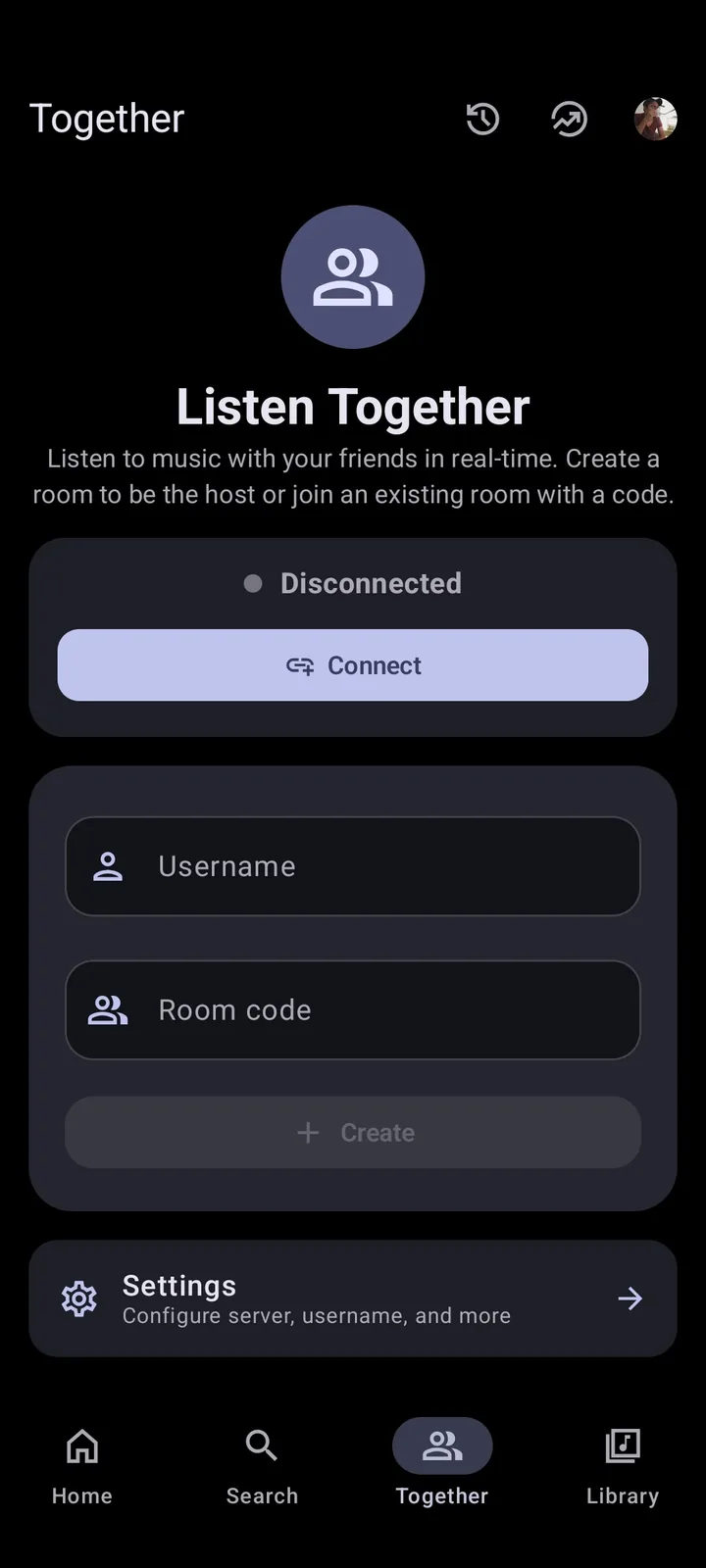
Install Metrolist APK with ADB
Metrolist is not a native ChromeOS package. The practical installation route is Google’s documented Linux and ADB developer workflow. Enabling ADB affects the device and disabling it can require a Powerwash, so back up local files and do not enable it casually on a shared computer. Google Android app deployment documentation.
Download only Metrolist.apk from the MetrolistGroup GitHub release. The stable v13.6.3 release was published August 7, 2026; the standard APK is 24,146,395 bytes. Avoid Mod APKs, Chrome extensions and unofficial Windows installers advertised as Chromebook editions.
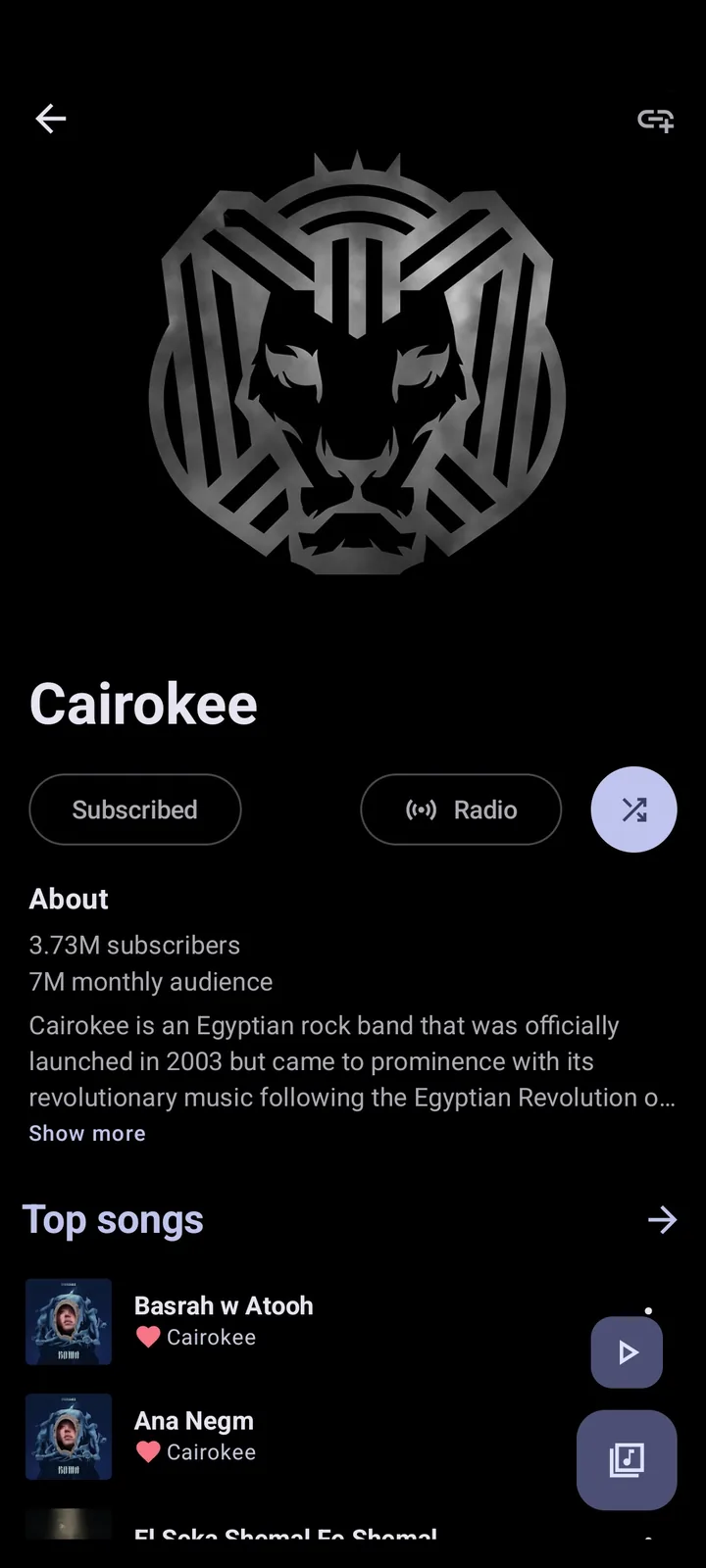
Test playback before signing in
Begin without an account. Play several public tracks, pause and resume, resize the window, switch apps, reconnect headphones and let the screen sleep briefly. Watch for black screens, delayed controls, audio stopping in the background or unusually high battery use.
Only after anonymous playback is stable should you test login, library refresh and logout. Release v13.6.3 fixes player recovery, black screens, startup crashes, login, backup restore and sleep-timer issues, but those fixes do not guarantee every ChromeOS model.
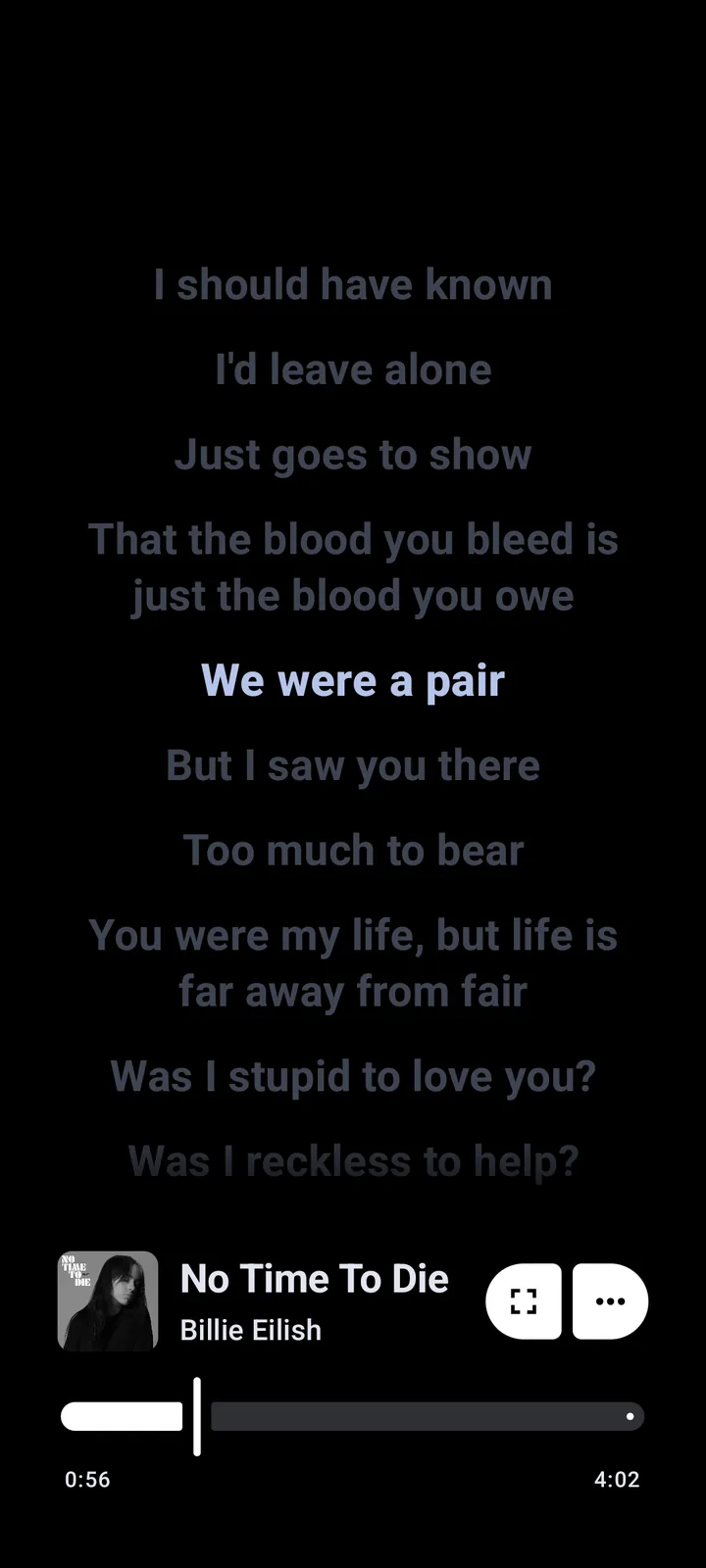
Understand the main limitations
Failures often come from ChromeOS rather than the APK: no Android support, blocked ADB, low storage, an outdated Android container or processor translation on an x86 Chromebook. A package that installs can still have poor audio or graphics behavior.
Playback can also fail because of YouTube Music availability, account state, DNS filtering or battery controls. Follow the Metrolist troubleshooting guide before clearing storage or Powerwashing.
Choose the browser when it is better
Use the official YouTube Music web player when the Chromebook is managed, lacks ADB or needs a dependable desktop interface. The browser avoids sideloading, Android-container storage and app-window scaling problems.
Choose Metrolist only when its Android features justify the extra setup. Compare Metrolist for PC and Metrolist alternatives. MetrolistGroup does not publish a native ChromeOS, Windows, macOS or web build.
Chromebook go-or-no-go checkpoint
Proceed only on a personal device where Android apps, Linux and ADB are available, the APK source is verified and playback survives window, sleep and audio-device changes. Stop if policy blocks sideloading, the source is unclear or basic playback fails repeatedly.
Does Metrolist Work on Chromebook? Compatibility Guide FAQ
Can I install Metrolist from Play Store on Chromebook?
No verified MetrolistGroup Play Store listing is available; compatible devices need Linux and ADB deployment.
Does every Chromebook support Metrolist?
No. Android apps, Linux and ADB permission are required.
Is legacy Developer Mode required?
Google documents ADB deployment on supported newer Chromebooks without legacy Developer Mode, but ADB debugging must be enabled.
Will it work on a school Chromebook?
Only if the administrator explicitly permits Android, Linux and ADB. Do not bypass policy.
Which APK should I try?
Start with the standard Metrolist.apk from v13.6.3.
What if background audio stops?
Check ChromeOS battery and audio settings, then use the troubleshooting guide or the browser player.